Interface and navigation
Home · Getting started · Projects and workspace

Goal
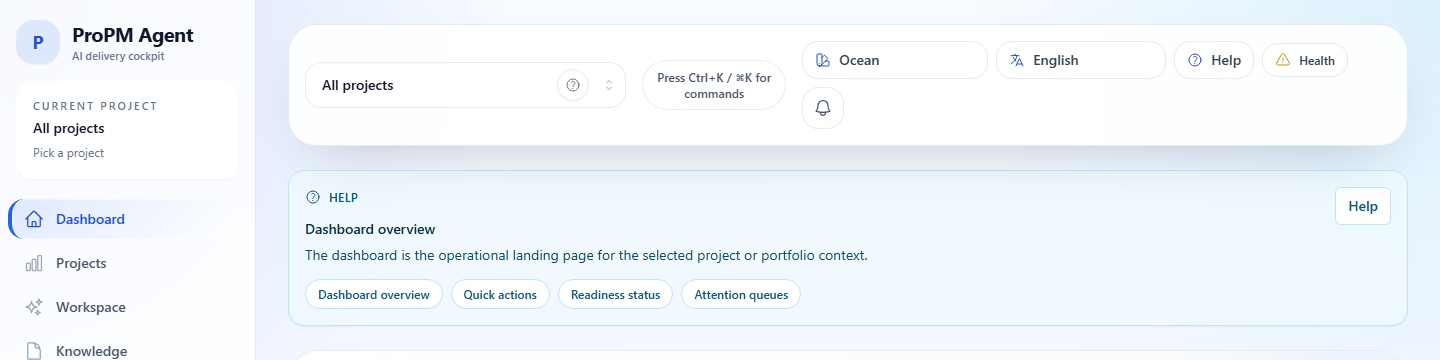
This page explains how to navigate the ProPM Agent shell, read the Dashboard, use the Command Palette, interpret notifications, and use the Health panel for a quick check when needed.
Overview
The interface follows a simple logic:
- the sidebar opens the major functional domains;
- the top bar changes the current project and opens quick tools;
- the central surface displays the current context;
- several screens change state depending on the active project and your rights.
Main navigation
| Entry | Primary use |
|---|---|
| Dashboard | Read the overall status and suggested next steps |
| Projects | Create, open and change project context |
| Workspace | Project summary, signals, readiness and project settings |
| Knowledge | Search, upload and import reference documents |
| Agents | Interact with available agents and read structured outputs |
| Reports & artifacts | Review, compare, publish or download PM Documents |
| AI Log | Inspect runs, events and traceability metadata |
| Portfolio command center | Compare multiple projects via configurable signals |
| Platform Administration | Manage integrations, AI provider, subscription and platform activity |
Dashboard
The Dashboard is the most useful screen right after logging in.
It consolidates:
- situational metrics;
- attention items;
- recommended next steps;
- shortcuts to action zones;
- a preview of open signals and items under review.
Use it as a orientation page: if no project is active, some blocks remain empty; if a project is selected, the indicators contextualize.
How to read the main dashboard areas
| Zone | What it summarizes | Useful reflex |
|---|---|---|
| Summary tiles | counters of projects, knowledge, active agents, open signals, notification drafts and pending actions | immediately spot if the subject is a lack of context, a review delay or a governed queue |
| Score cards | overall delivery state, execution rhythm, governance coverage and knowledge depth | read these cards as orientation markers before opening a detail screen |
| Readiness blocks | knowledge foundation, automation coverage, governance posture and delivery flow | identify which pillar blocks normal project use |
| Attention panel | signals, governed actions and connector watchlist | go to Workspace to address active blockers |
| Pulse panel | latest digest, recent notifications, recent activity and connector status | check what has changed without rereading the entire project history |
| Quick links | shortcuts to Workspace, Knowledge, Agents, Reports & artifacts, AI Log and Portfolio | open the right surface directly instead of navigating screen by screen |
Dashboard scores and indicators should be read as prioritization cues, not as isolated conclusions.
What to do if the dashboard seems contradictory?
- first confirm the active project in the top bar;
- then treat the cards as orientation signals, not the sole source of truth;
- open Workspace to verify signals, readiness and project blockers;
- open the AI Log if doubt concerns a run, an output or the actual provider used;
- if the dashboard loads but calls for additional verification, open the Health indicator before concluding on the displayed data.

Top bar
| Element | Function |
|---|---|
| Project selector | Change the current project without going through the full list |
| Command palette | Quick search on pages and common actions |
| Notifications | Show attention items raised by the product |
| Health indicator | Open a quick read of API, realtime and auth status |
| Language | Change the interface language |
| Theme | Toggle light/dark appearance |
| Help | Open integrated help messages |
How to read the active project from the top bar
The top-bar project selector defines the active project. That project is then used as context by project-scoped pages.
In practice:
- Knowledge searches inside the active project;
- Agents launches runs in the active project;
- Reports & artifacts reviews PM Docs and artifacts from the active project;
- AI Log shows runs and activity from the active project;
- Workspace shows signals, settings, and integrations from the active project.
The retained project can be remembered locally in the browser. That navigation convenience is not a platform-wide shared setting.
Command palette
The command palette is designed for quick navigation.
- Windows / Linux:
Ctrl+K - macOS:
Cmd+K
It filters available pages and entries by name and description. Use it to quickly return to AI Log, Platform Administration or any rarely opened route.
Notifications
The notification center is accessible from the bell icon in the top bar.
Observed capabilities:
- counter of unread items;
- dropdown panel;
- Mark all as read;
- Clear all;
- click on a notification to open the linked surface when navigation is provided.
Notifications do not come from a single event family. In the observed application they can aggregate:
- agent or run status changes;
- report, artifact, or document events;
- server-side project notifications;
- governance or approval follow-ups;
- integration, Marketplace, subscription, or cost-related updates.
The top-bar center can therefore mix near-real-time events and server-polled project notifications in the same feed.
Health indicator
The health indicator opens a quick read panel. It allows you to view:
- API status;
- realtime status;
- auth status;
- observed latency;
- a message displayed if the interface has one;
- the current project when context matters in the status read.
Open it if an agent appears offline, if notifications stop refreshing or if a availability check is useful.
If the panel indicates a degraded state while the interface is still loading, keep this reading order:
| If the signal mainly concerns… | Open next | Why |
|---|---|---|
| authentication | Getting started | to distinguish tenant, account, redirect URI, admin group or headquarters |
| runtime, API or connectivity | Maintenance, support and FAQ | to follow the verification path between health, AI provider, integrations and execution |
| project context, a blank screen or missing action | Projects and workspace | to verify the active project, binding, readiness and project rights |
Before escalating, note the displayed state for API, realtime, auth, latency, current project and the approximate test time. These details greatly aid the responsible team.
Project context and empty states
Several ProPM Agent screens depend on the active project. In practice:
- without a selected project, some pages show a normal empty state;
- with a selected project, the same page loads the data and actions for that project;
- changing the project changes the content of Knowledge, Agents, Reports & artifacts and AI Log.
This context dependency prevents mixing evidence, conversations and deliverables from multiple projects.
What navigation does not mean
A few misunderstandings are common:
- opening Portfolio does not automatically change the active project of project-scoped pages;
All projectsis not a selectable project in the top bar;- a blank page is not proof of failure: it can simply mean that no active project is set or that no data yet exists for that project;
- seeing a chat history in your browser does not mean it is shared with every user.
Language, theme and help
The interface language can be changed from the top bar. Changing the theme improves reading comfort, with no effect on project data. The integrated help catalogs cover general navigation, project pages, the AI Log and governance reminders.
What stays browser-local in navigation
Beyond chat continuity and the remembered current project, the observed browser-local conveniences also include:
- interface language and theme;
- recent-project shortcuts;
- notification-center read and cleared state;
- some saved table or view preferences.
By contrast, project notifications, signals, digests, notification drafts, governed actions, documents, and artifacts belong to shared platform state.
Navigation tips
- change project before opening an agent or a report;
- use the Command palette to quickly find a rarely used surface;
- return to the Dashboard when you lose the thread of the journey;
- if an action seems missing, distinguish read‑only and access denied;
- open the Health indicator before concluding a service availability issue.