Active project and project creation
Home · Active project and project creation
Goal
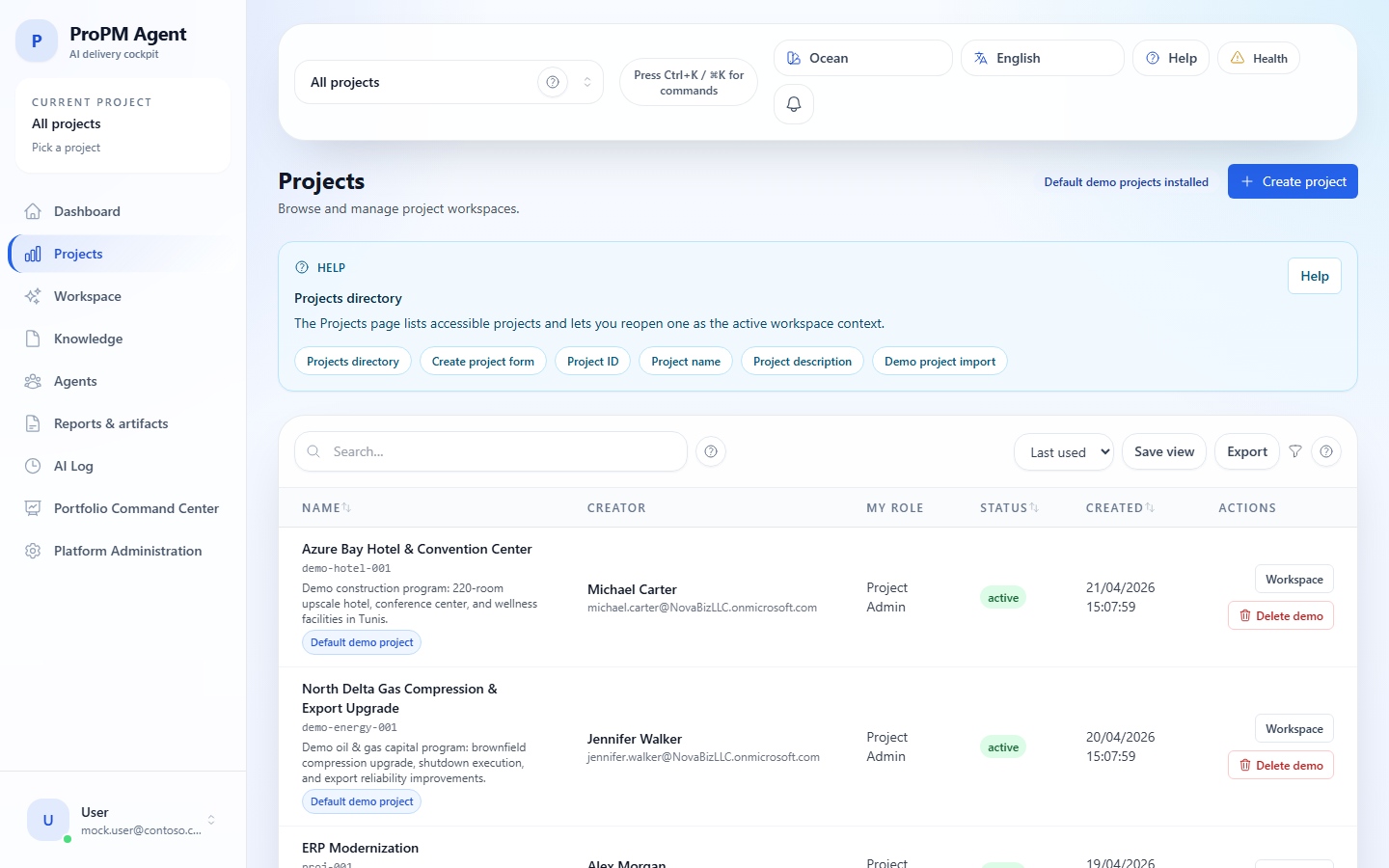
This page explains how to select the active project, create a project and verify that Knowledge, Agents, PM Documents and AI Log use the right context.
Select an active project
- Open the project switcher in the top bar.
- Search for the project if the list is long.
- Select the project.
- Confirm that the project name appears in the top bar.
- Open Dashboard or Workspace to confirm the data matches.
Create a project
- Open Projects.
- Select Create project if the button is available.
- Enter name, description and required settings.
- Choose the default data language if shown.
- Add additional languages only when the project sources need them.
- Save the project.
- Confirm that it can be selected as the active project.
Key concepts
| Concept | Meaning |
|---|---|
| Active project | Current operational context for project pages |
| All projects | Scope limited to projects the same account can already access |
| Locally remembered project | Browser-local preference that may differ across devices |
Common issues
| Symptom | Likely cause | Recommended action |
|---|---|---|
| Create button missing | Insufficient role | Ask for the required role |
| Project not visible | You are not a project member | Ask the Project Owner |
| Pages stay empty | No active project | Select the project in the top bar |
| Data does not match | Wrong active project | Switch project and reload |