Projects and workspace
Home · Projects and workspace
Goal
This page explains the difference between Projects, Workspace and Agents, then details the project settings actually visible in the application.
Three surfaces to distinguish
| Surface | When to use |
|---|---|
| Projects | Create a project, open an existing one, change context |
| Workspace | Read the project summary, operational transparency, signals and project‑level settings |
| Agents | Start a live exchange with an agent and read the run’s structured output |
In practice, Projects is used to enter the right context, Workspace to configure it, and Agents to exploit it.
The exact role of the active project
The active project is the context currently applied to project-scoped work pages.
Concretely, it determines:
- the documents visible in Knowledge;
- the runs launched in Agents;
- the PM Docs, artifacts, and diffs visible in Reports & artifacts;
- the runs and events displayed in AI Log;
- the signals, integrations, and policies displayed in Workspace.
It should therefore not be confused with:
- the active project: current operational context;
- Portfolio: multi-project comparison surface;
- All projects: optional custom-agent scope visible across projects for the same account.
Create a project
The form contains the following fields:
- Project ID;
- Name;
- Description;
- Default data language;
- Additional data languages.
Input recommendations:
- choose a readable and durable ID;
- do not confuse project data language with interface language;
- correctly define the scope before opening knowledge or agents.
Project creator: initial rights and delegation
At creation, the project creator starts with the role Project Owner and all available project permissions. In practice, this is the person who can open the project, verify the initial configuration and then delegate roles to the rest of the team.
Recommended delegation immediately after creation
- open Access control;
- add at least one other Project Owner or a trusted Project Manager;
- create, if needed, targeted custom roles rather than multiplying owners;
- then assign roles to contributors, readers and auditors;
- finally review the Governance Policies and Project Integrations to align rights, connectors and validations.
What the platform still protects
- the creator’s entry remains protected;
- the creator’s role remains fixed in the interface;
- delegation is done by assigning additional roles, not by removing creator protection;
- for detailed RBAC, see Access control and project roles.
Open and change project
A project can be opened from:
- the Projects page;
- the top‑bar project selector;
- the recently remembered context in the browser.
When you change project, the following surfaces align: Knowledge, Agents, PM Documents / Reports & artifacts, AI Journal, signals and project settings.
Changing project therefore really changes the active context used by document search, agent conversations, reports and related traces.
The last retained project may be remembered locally by the browser to ease resumption, but this local memory is not a platform-wide shared setting.
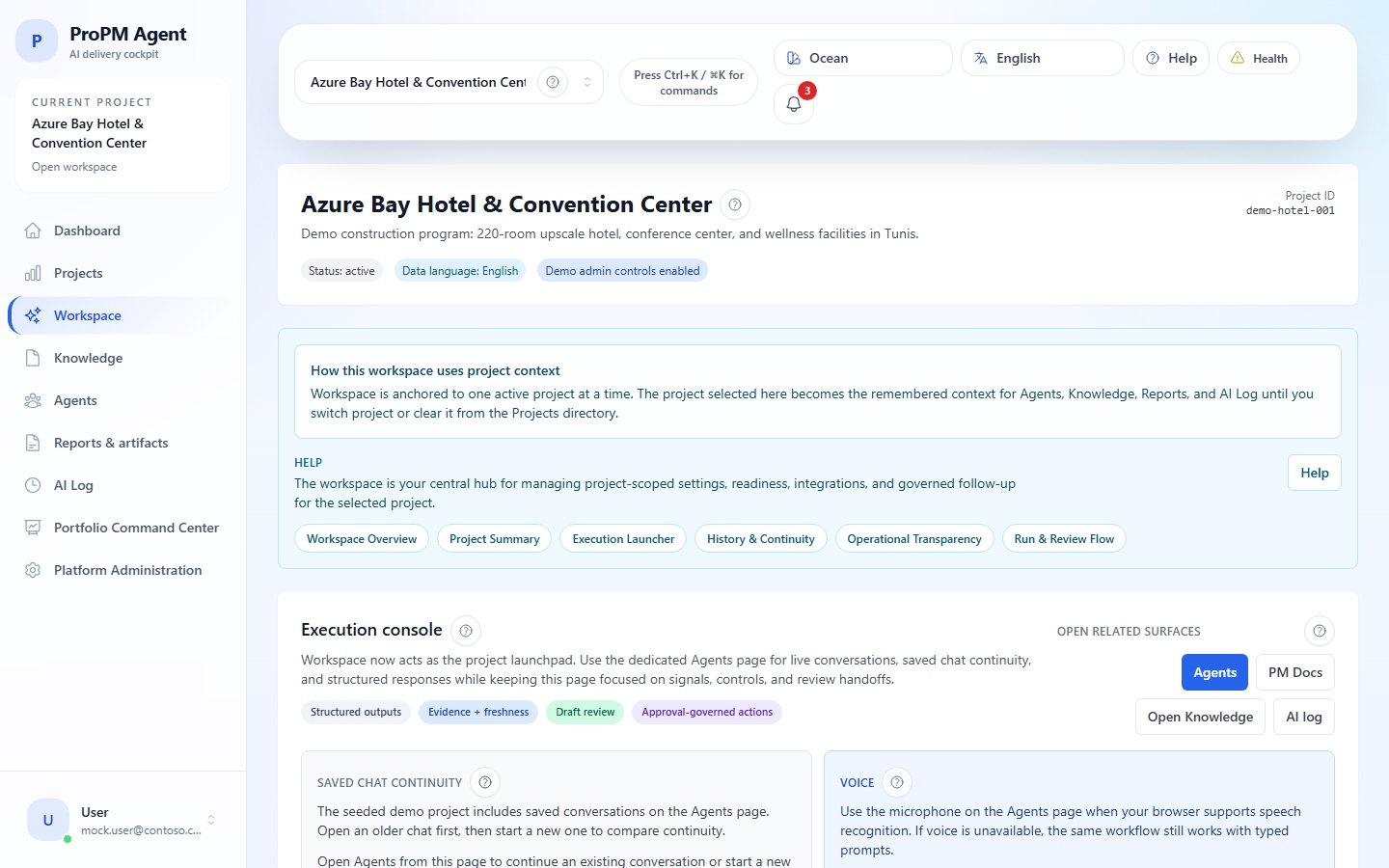
The workspace: project command center
The Workspace brings together in a single surface:
- the project summary;
- shortcuts to Agents, PM Documents and AI Journal;
- a view of operational transparency;
- the project’s signals;
- project‑level setting tabs.
The Workspace no longer presents a dedicated voice entry point. When voice input still exists in some environments, it is available in Agents, not as a separate workspace entry point.
Operational transparency and preparation
The workspace is not only for summarizing the project. It also lets you see if the project is ready to act:
- presence or absence of signals;
- recent activity;
- shortcuts to related drafts or deliverables;
- preparation of project integrations when they exist;
- exposure of the actual AI provider without opening tenant configuration.
Use this area to understand why an action or import may be available, confirmed or blocked.
How signals, digests, and drafts arrive
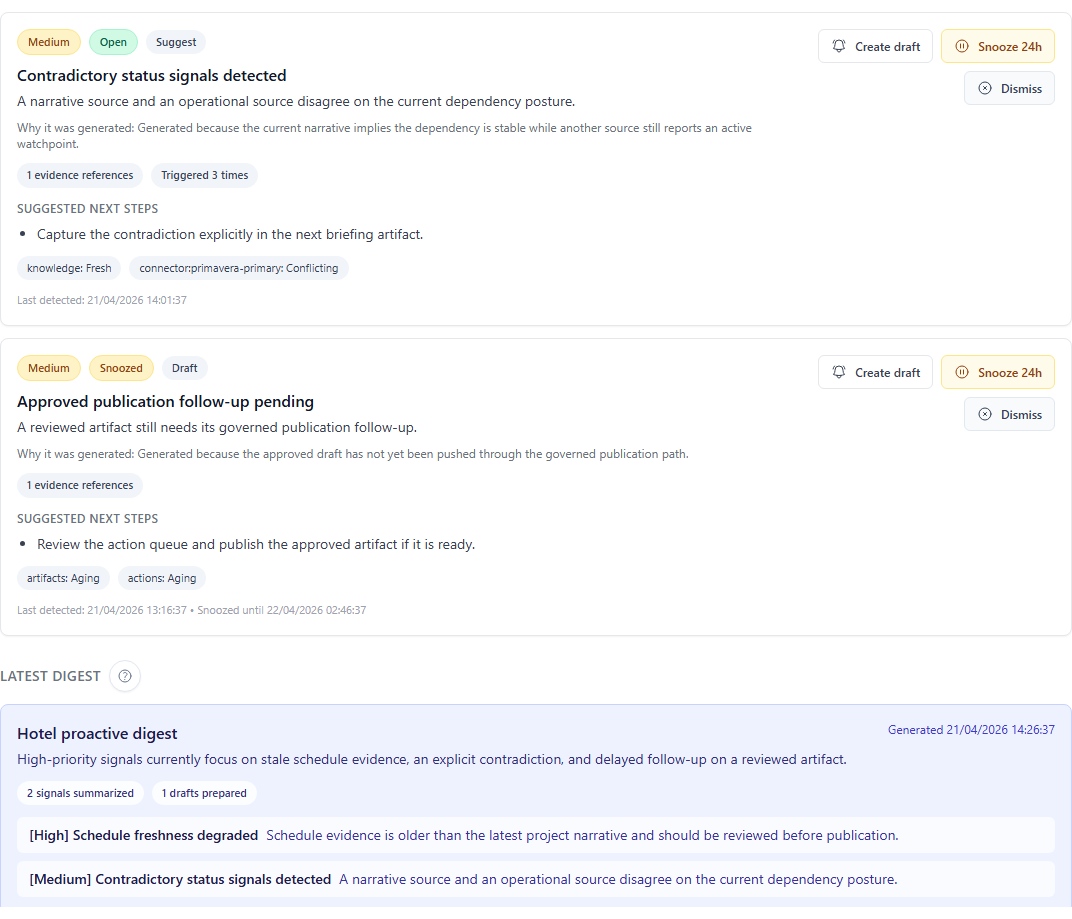
In the interface, the project signals panel rereads three shared platform flows for the active project:
- current signals;
- recent digests;
- notification drafts linked to those signals.
Useful reading:
- opening the workspace loads the shared state already known for that project;
- Refresh explicitly asks the system to re-evaluate the project and pull the latest proactive signals;
- Generate digest draft builds a fresh grouped summary and can prepare
in_appnotification drafts; - these items are therefore not just browser notes or local chat leftovers.
Project‑level tabs
| Tab | Purpose |
|---|---|
| Agent configuration | Set agents for this project |
| Access control | Manage members, roles and project‑level permissions |
| Document categories | Adapt the project’s document taxonomy and propagate it to the project’s document surfaces |
| Governance policies | Define connectors, destinations, action policies, rendering profiles and project‑level notification preferences |
| Project integrations | Link ready and authorized integrations to the project |
| Actions & approvals | Manage action requests, validations and governed execution |
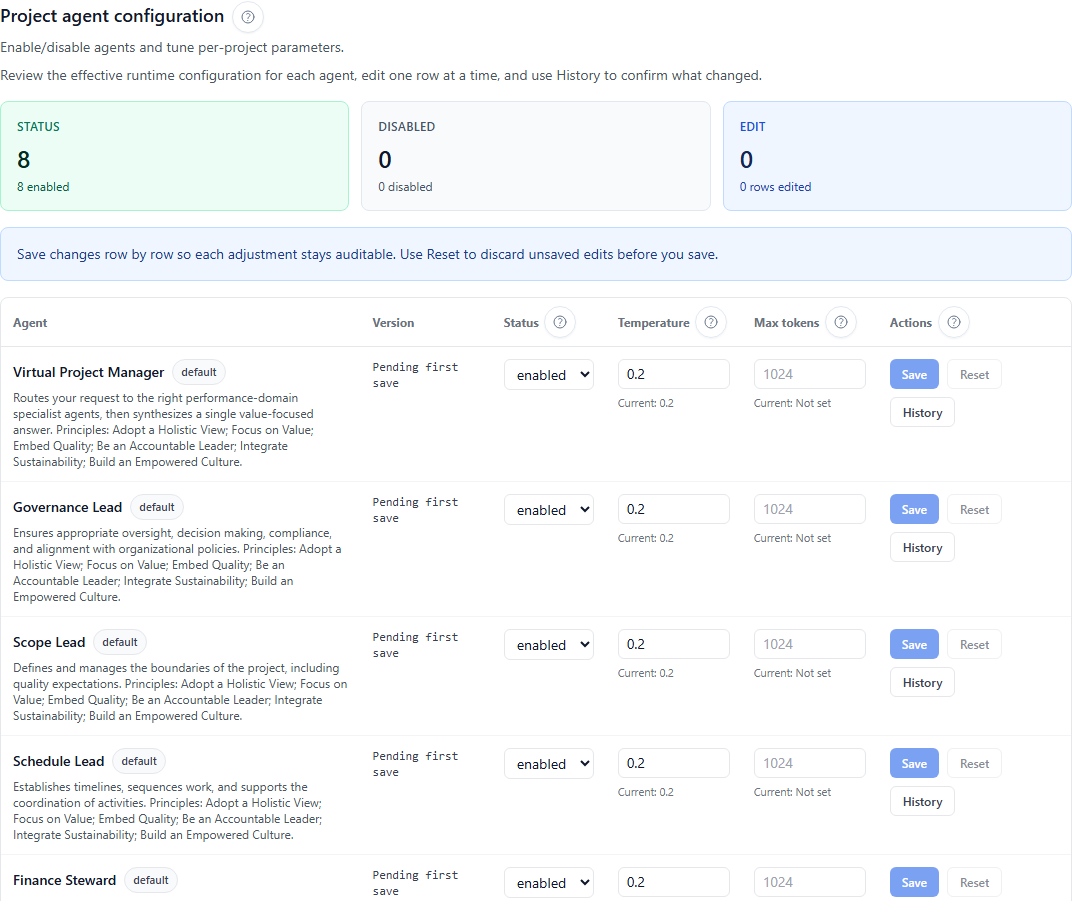
Agent configuration
Project‑level parameters confirmed are:
status;temperature;max tokens.
Visible constraints
temperatureis expected between 0 and 2;max tokensmust be an integer ≥ 1.
Configuration history
The interface also exposes a history by version with at least:
- version number;
- status;
- temperature;
- max tokens;
- creation date;
- author;
- associated
Trace ID.
Access control
The Access control tab administers project members and roles. It supports:
- standard roles;
- custom roles;
- RBAC safeguards;
- read‑only for profiles not authorized to modify.
See the dedicated page: Access control and project roles.
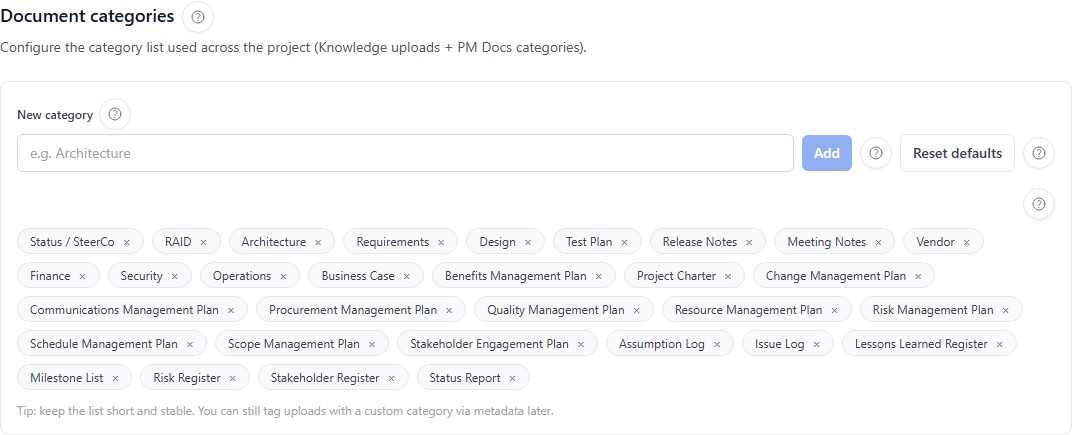
Document categories
This tab aligns the document classification with the project. In practice, the project taxonomy influences the categories offered during uploads and some document selectors used later in project surfaces.
Concrete effect of an update
When the category list is successfully updated:
- the upload category selector in Knowledge is updated;
- category selectors and filters in PM Documents align when they use this shared taxonomy;
- the change remains limited to the current project.
Practical examples
Keep a short and stable taxonomy. For example, instead of multiplying close variants, prefer a few coherent categories such as:
- project charter;
- risk register;
- status report;
- procurement plan;
- communication plan.
The goal is not to encode the document version in the category, but to keep a reusable classification between Knowledge and PM Documents.
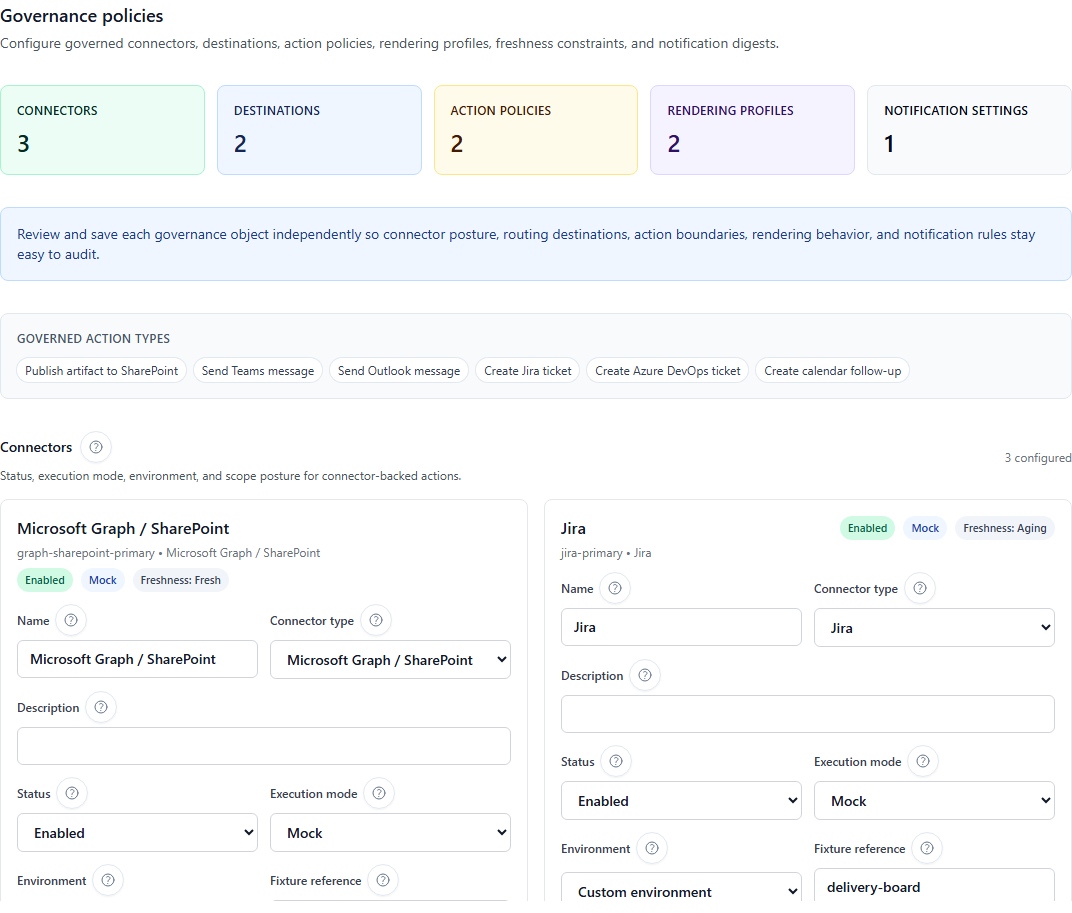
Governance policies
This tab sets the rules that frame decisions, validations and governance behavior of the project. Use it before publishing a deliverable or authorizing an external governed action.
Visible sub‑surfaces in Governance policies
| Sub‑surface | What it regulates |
|---|---|
| Execution connectors | Connector type, status, execution mode, environment, scopes and context parameters |
| Artifact destinations | Target destination of an artifact, associated connector, active or default status |
| Action policies | Concerned role, targeted connector, action level (observe, draft, propose, execute), effect (allow, require_approval, deny) and authorized scopes |
| Rendering profiles | Rendering profiles and output format used during governed publications |
| Notification preferences | Channel, notification type, digest mode, severity threshold and preference activation |
Useful settings examples
- require explicit approval before publishing to SharePoint;
- allow creation of Jira tickets only at
proposelevel for certain roles; - prepare
signal_digestpreferences inin_appfor internal tracking; - leave external notifications
email,teamsorwebhookin an approved path only when the connector is healthy; - choose separate rendering profiles for DOCX and XLSX publications.
Credible scenario — sensitive project / governed distribution
For a project where all external distribution must be controlled, a coherent setting often looks like this:
- Artifact destinations: active SharePoint destination with known rendering profile;
- Action policies:
allowforobserveanddraft, butrequire_approvalforexecuteon publications and external notifications; - Execution connectors: external connectors visible only to truly authorized roles;
- Notification preferences:
signal_digestindailyfor the team,signal_alertonly for the most sensitive cases; - Project integrations: bindings enabled only for connectors already validated at platform level.
This combination prevents a draft, digest or action from appearing directly distributable while the project still awaits human approval.
Project integrations
This tab separates technically defined platform integrations from those that are actually usable by the project.
How to read this tab
Project integrations is not the place where you configure the full tenant-wide technical stack. It is mainly a project readiness surface: what this project can see, what is ready, and what remains blocked with an explicit reason.
You can typically read several information families there:
- Execution connectors: governed outbound options toward external systems;
- Ingestion providers: import sources later consumed by Knowledge;
- AI runtime transparency: effective AI provider and deployment-selected provider;
- License and seat posture: active plan, purchased licenses, used licenses and available seats visible to the project.
What the Project integrations screen shows
The screen separates technical readiness from project availability:
- platform setup, project binding, policy, permission, health and license availability for app access are separate causes. A connector can stay visible in read-only mode so the project team understands why it is blocked instead of assuming it is missing;
- technical setup remains in Platform Administration. Project settings managers can bind integrations that are enabled and ready, while sensitive information stays centrally controlled in secured administration.
| Area | What you may see | How to act |
|---|---|---|
| Execution Connectors | a current list that may be empty, plus an Available to bind catalog with Asta Powerproject schedule sync, Azure DevOps delivery project, Jira delivery workspace, Microsoft Project schedule sync, Microsoft Teams collaboration, Outlook executive notifications, SharePoint publication library, Smartsheet portfolio workspace, Webhook event delivery and Wrike delivery workspace | use Bind to project only for connectors already enabled and ready at platform level |
| Ingestion Providers | visible providers such as Smartsheet sheet import and Azure Data Factory evidence pipeline marked Healthy, plus available providers such as SharePoint knowledge import, Azure Blob document ingest, Confluence knowledge import, Jira issue import, SFTP document intake, Microsoft Project schedule import, Wrike task import and Asta Powerproject schedule import | use Validate binding to re-check a bound provider, Disable to close it for the project, or Bind to project for an approved provider |
Provider cards can show Ready, Healthy or Not configured. Not configured means the provider exists in the platform catalog but still needs source, credential or readiness setup before the project can use it.
For required fields, probes, action mapping and live execution limits, use Connectors and integrations. Ready or Healthy means preparation is coherent, but does not by itself prove that a full external ticket, message or import has already been executed.
Blocking causes shown by the product
A project integration or import option may be blocked due to:
- policy;
- permission;
- health status to check;
- missing or disabled platform definition;
- disabled or unconfigured project binding;
- incomplete provider-specific configuration or validation.
Interpreting a binding block
| Visible cause | Practical reading | Recommended reflex |
|---|---|---|
entitlement | legacy wording for a blocked integration, not a Marketplace feature-tier difference | check configuration, validation, health, binding, policy, role and license availability for access issues |
policy | project governance forbids or limits this flow | reread Governance Policies before changing the binding |
permission | the connector exists but your role does not allow activation or use | check the project role in Access control and project roles |
health | the platform definition exists but its preparation or availability requires verification | open Platform Administration to confirm the technical definition |
| missing or disabled definition | nothing is actually ready at tenant level | first request setup or re‑activation from the platform |
| missing project binding | the platform is ready but the project has not yet consumed the integration | explicitly enable the binding on the project side |
Practical reading of binding and licensing
- binding means the connector or provider exists at platform level, but must still be attached and opened to the project before the project can consume it;
- licensing controls whether a user has an available seat to access the app. Marketplace plans do not unlock or block different connector families;
- a visible but blocked connector therefore does not automatically mean it is broken: the interface can keep it visible precisely to explain the blocking reason.
If a block persists, open Platform Administration to verify the technical definition, then return to the project to confirm binding and readiness.
Jira, SharePoint and connector chain

Keep this logic simple:
- Platform integrations define the connector or ingestion provider;
- Project integrations expose only the approved and ready binding;
- Governance policies decide what each role can observe, prepare, propose or execute;
- Actions & approvals then apply these rules during the real request;
- PM Documents and AI Journal keep the flow trace.
See the dedicated page: Connectors and integrations.
Actions & approvals
This tab turns a recommendation into a controlled operation.
The real states to keep in mind
In the interface, the queue and synthesis cards mainly distinguish four states:
| Visible state | Practical reading |
|---|---|
| Execution prerequisites | compatible connectors may exist, but execution is still blocked by health, configuration, binding, permission, policy, approval or unavailable readiness |
| Pending approval | the request has been proposed and is still awaiting a governance decision |
| Ready to execute | the request is already approved, but execution remains a distinct step |
| Executed history | the action has actually been executed and remains visible as audit history |
A request can therefore be approved without yet being executed.
How to read a tab that looks empty or incomplete
The tab being visible does not mean an action is already executable. When nothing concrete seems available, the most useful reading is often:
- no compatible healthy execution connector is ready for that action type;
- the project binding does not yet expose the option to the project;
- a policy allows review but not proposal or execution;
- your permission lets you see the queue, but not act on it;
- approval is required and no decision has yet been taken.
When everything is correctly ready, you should expect at least:
- a compatible action type;
- at least one healthy execution option;
- a valid project binding;
- a coherent policy;
- a user authorized to propose, approve or execute depending on the case.
Read‑only or access denied
- read‑only: the tab remains visible but saving is blocked;
- access denied: the route or action is not available for your account.
This difference is especially important for Access control, Project integrations and governance settings.
Recommended path after project creation
- open the Workspace;
- first verify the creator, members and roles if the project is collaborative;
- then adjust document categories;
- review Governance Policies before any external distribution;
- link only the truly ready Project integrations;
- then load Knowledge;
- finally move to Agents, PM Documents and Actions & approvals.
Two useful configuration scenarios
Scenario 1 — minimal new project
For a project that starts, keep a simple order:
- add essential members and verify their roles;
- create a short document taxonomy in Document categories;
- enable only already validated and truly necessary integrations;
- prepare minimal governance, e.g., an internal digest and a default artifact destination;
- load Knowledge before opening agents.
This scenario avoids opening connectors or rules too early that will not be used immediately.
Scenario 2 — sensitive project / governed distribution
For a project exposed to external notifications or formal document publication:
- limit roles that can access external connectors;
- prepare a SharePoint or equivalent destination in Artifact destinations;
- apply
require_approvalon action levels that can produce external distribution; - prioritize
signal_digestfor current tracking and reserve instant alerts for critical cases; - only make visible in Project integrations the bindings whose preparation and policy are already compliant.
This second scenario aligns signal reading, distribution, approval and real execution instead of letting the team treat each screen as an independent surface.