ProPM Agent User Guide
Highly recommended reading
To successfully adopt ProPM Agent in the organization and fully leverage the application, it is strongly recommended to read this guide from the start of the project, then refer to it during deployment, connector setup, governance and daily operation.
This documentation describes only the functions observed in the application, in the code, in the deployment configuration and in the automated tests of ProPM Agent.
It is organized for two audiences:
- Business users who work on a project;
- Technical administrators who manage access, integrations, AI provider, subscription and supervision.

I want to find the right page quickly
| Observed situation | First open | Then |
|---|---|---|
| I cannot log in | Getting started | Maintenance, support and FAQ to distinguish tenant, redirect URI, seat or health status |
| No projects appear | Getting started | Projects and workspace, then Maintenance, support and FAQ if adding to the project or role remains doubtful |
| A page stays empty until an active project is defined | Getting started | Projects and workspace to confirm project context, then Maintenance, support and FAQ if the empty state still seems abnormal |
| An action is visible but blocked | Governance, decisions and actions | Connectors and integrations, then Portfolio and technical administration if the block comes from a connector, a binding or an entitlement |
| The AI provider does not seem operational | Portfolio and technical administration | Maintenance, support and FAQ and Reports, AI Log and traceability to confirm the actual provider |
If you are looking for a verification procedure or an operational reference, open Maintenance, support and FAQ.
Recommended reading path
| If you’re looking for… | Start here |
|---|---|
| Deploy a new instance in Azure | Azure Marketplace deployment |
| Log in, verify authentication and create your first project | Getting started |
| Understand the interface, palette, notifications and health | Interface and navigation |
| Manage project context and workspace settings | Projects and workspace |
| Administer members, roles, delegations and project RBAC guardrails | Access control and project roles |
| Import documents, search evidence and work with agents | Knowledge and agents |
| Read a structured output correctly, its evidence and freshness | Structured outputs, evidence and freshness |
| Handle signals, governance and actions requiring approval | Governance, decisions and actions |
| Review an artifact, publish a PM Document and investigate in the AI Log | Reports, AI Log and traceability |
| Understand supported connectors and integrations | Connectors and integrations |
| Compare projects, manage integrations, AI and seats | Portfolio and technical administration |
| Consult support and verification procedures | Maintenance, support and FAQ |
| Clarify product terms | Glossary |
Quick path by profile
| Profile | Pages to open first |
|---|---|
| Business user / contributor | Getting started → Interface and navigation → Projects and workspace → Knowledge and agents → Structured outputs, evidence and freshness |
| Project owner | Getting started → Projects and workspace → Access control and project roles → Governance, decisions and actions → Connectors and integrations → Reports, AI Log and traceability |
| Technical administrator | Azure Marketplace deployment → Getting started → Portfolio and technical administration → Connectors and integrations → Maintenance, support and FAQ |
| Support / audit | Getting started → Structured outputs, evidence and freshness → Reports, AI Log and traceability → Governance, decisions and actions → Glossary |
Recommended end‑to‑end path
Short chain to remember: Active project → Agents → structured output → artifact / PM Doc → review / diff / lineage → Approve / Publish / Add to knowledge.
In real usage, the most frequent flow is:
- deploy or retrieve the published URL;
- log in with an authorized Microsoft Entra ID account;
- create or select an active project;
- let the project creator delegate the first useful roles;
- load the Knowledge of the project;
- launch an exchange in Agents;
- review the structured output, its evidence, freshness and confidence;
- transform the result into an artifact or a PM Document, then review before downloading DOCX / XLSX, publishing or adding to knowledge;
- handle proactive signals, Actions & approvals and, if needed, external integration flows;
- administer at the platform level only when the subject goes beyond the project.
Label convention
When the platform exposes a French translation, this documentation prefers this label:
- Workspace;
- Knowledge;
- PM Documents;
- AI Log;
- Access control;
- Governance policies;
- Project integrations;
- Platform integrations;
- AI provider settings;
- Actions & approvals.
When an English label is useful to remove ambiguity, it is cited occasionally in code, e.g. Trace ID or OpenAI-compatible.
What ProPM Agent covers
Based on verified behaviours, ProPM Agent organizes work around the project context:
- you open or create a project;
- you feed the Knowledge;
- you query the Agents;
- you review the structured outputs;
- you transform those results into PM Documents and artifacts;
- you verify traceability in the AI Log;
- you handle signals, digests, drafts and governed actions;
- you use connectors and integrations only when they are validated and bound to the project;
- administrators steer the technical layer in Platform Administration.
Observed functional architecture
| Domain | What it allows |
|---|---|
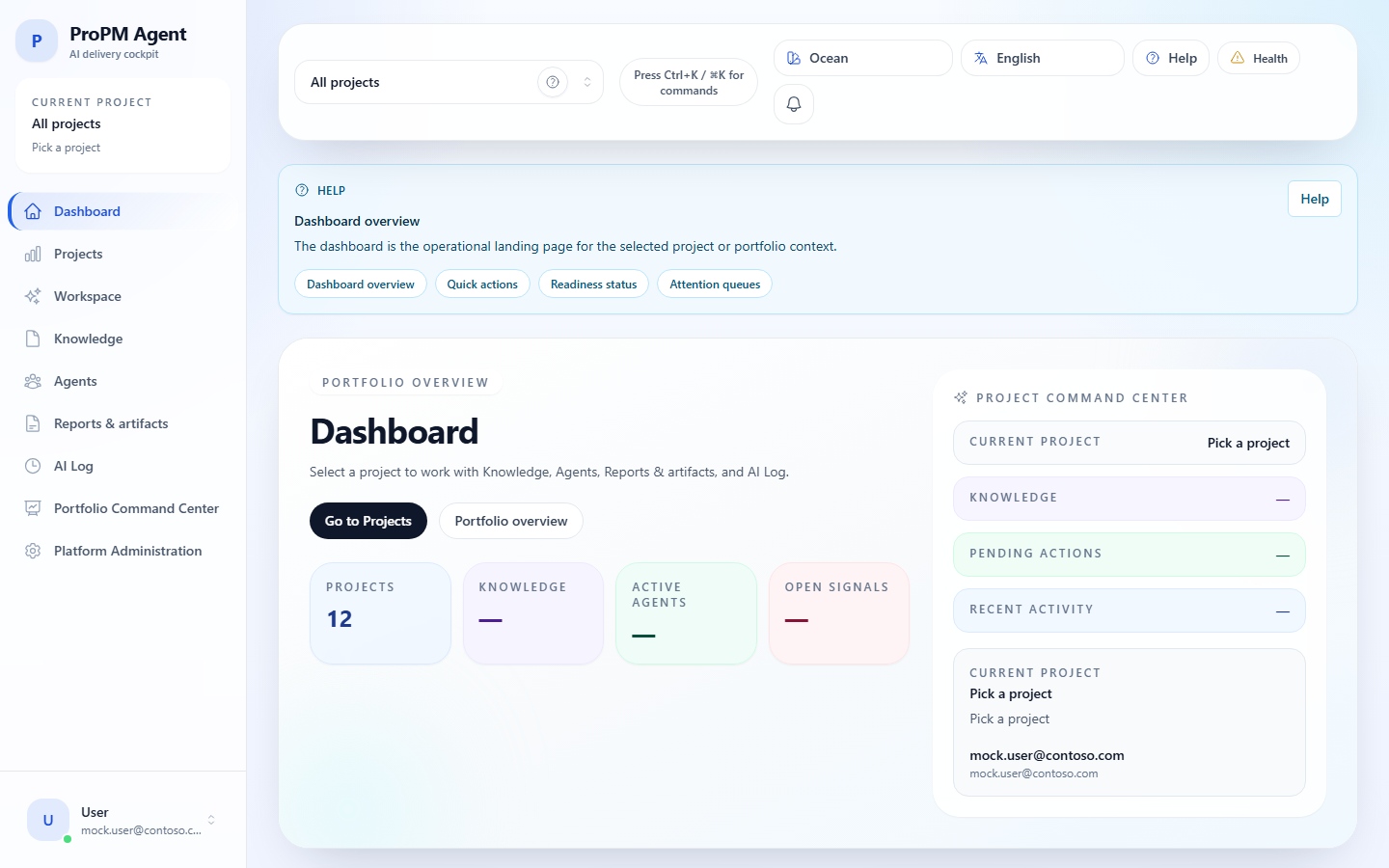
| Dashboard | See overall status, metrics, points of attention and next steps |
| Projects | Create, open and remember project context |
| Workspace | Group project summary, operational transparency, signals, shortcuts and project settings |
| Access control | Manage members, standard roles, custom roles and project permissions |
| Knowledge | Search, upload, import, re‑read metadata and track ingestion history |
| Agents | Choose an agent, launch an exchange, use voice input in Agents if the environment still exposes it, and manage custom agents according to rights |
| Structured outputs | Read summary, evidence, freshness, confidence, artifact proposals and next steps |
| PM Documents / Reports & artifacts | Review, compare, approve, publish, download and reinject deliverables into knowledge |
| AI Log | Inspect runs, activity, technical IDs and AI runtime transparency |
| Connectors and integrations | Separate platform definitions, project bindings, action policies and governed execution |
| Portfolio command centre | Compare multiple projects with signals, weights, thresholds and saved cohorts |
| Platform Administration | Manage integrations, AI provider, subscription, seats and platform activity |
What distinguishes the application
The following elements are explicitly visible in the interface, seeded data or tests:
- structured outputs with sections, evidence, freshness, confidence and follow‑up decisions;
- lineage between a run, a structured output, an artifact, an artifact version and a PM Document;
- proactive signals for contradictions, freshness, blockages, follow‑ups and certain portfolio pressures;
- governed documentary chain from an agent result to DOCX / XLSX downloads, publication and reinjection into knowledge;
- governed connectors separated between Platform integrations, Project integrations and Actions & approvals;
- AI runtime transparency with actual provider, provider selected at deployment and model family.
Audiences and responsibilities
| Profile | Main needs |
|---|---|
| Project manager / PMO | Project context, agents, deliverables, signals, governance and traceability |
| Contributor | Search in knowledge, generate content, review outputs and track runs |
| Project owner | Project settings, role delegation, document categories, project integrations and governance policies |
| Technical administrator / subscription | Deployment, authentication, platform integrations, AI provider, subscription, seats and supervision |
Screenshots and diagrams
Screenshots of the application were generated on the observed environment. When some available screenshots mainly showed a loading state or incomplete demo data, this French version also favours explanatory diagrams to keep a usable reading before final translation and publication.
Demo content can also vary by environment: some projects do not always expose the same seeded documents, seeded reports or examples shown in the documentation.
What stays local to the browser and what is shared
Two logics coexist in the product:
- some convenience features, such as the remembered current project or saved chat continuity, stay local to the browser;
- project data, documents, artifacts, approvals and publications belong to the shared platform.
A visible chat history in one browser should therefore not be treated as a central archive shared by all users.
Support and contact
Use the appropriate channel depending on the request type:
| Request type | Priority to forward |
|---|---|
| Technical support | Deployment URL, project in question, observed situation, approximate time, Trace ID if visible |
| Access, tenant or identity question | Expected tenant, account used, actual URL opened, Microsoft message or screenshot |
| Commercial or subscription question | Account context, plan in question, number of seats or capacity need |
All these requests can be sent to the following contact point:
- NovaBiz
- 131 Continental Dr, Suite 305
- Newark, DE 19713 · United States
- support@navabiz.pro