Access control and project roles

Home · Projects and workspace · Maintenance, support and FAQ

Creator delegation and RBAC roles

Goal

The Access control is the project‑level RBAC administration area. It allows you to decide:

  • who can enter the project;
  • what role each member receives;
  • which custom roles exist in this project;
  • what permissions those roles grant.

Why it matters

Rights condition a large part of the experience: agent execution, member management, deliverable generation, integration configuration, publication governance and audit reading. A correct reading of roles avoids confusing a functional block with a simple lack of authorization.

Who can use this page

  • view members and roles: any member who can access the workspace;
  • manage members: user with members:manage;
  • manage custom roles: user with roles:manage.

Project creator: initial role and delegation

At project creation, the creator starts with the Project Owner role and all observed project permissions. They therefore serve as the initial administrative point: they open the project, control the initial configuration and then delegate useful roles to other members.

  1. keep the creator as the initial administrative safeguard;
  2. assign a second Project Owner if the project should not depend on a single person;
  3. use Project Manager for daily steering;
  4. reserve custom roles for real need gaps;
  5. then check Governance policies and Project integrations so that rights match external usage.

What the observed documentation confirms

  • the creator cannot be removed from this screen;
  • the creator’s role remains fixed;
  • a user cannot self‑downgrade or self‑remove from this surface;
  • role delegation is confirmed;
  • free transfer of the creator status is not confirmed by the observed screens.

Standard roles observed

Each project starts with protected built‑in roles:

RoleTypical usage
Project OwnerFull project administration
Project ManagerDaily operational steering
ContributorContent contribution, agent usage and deliverables according to permissions
ReaderRead‑only consultation
AuditorAudit‑oriented consultation and traceability

These built‑in roles are protected server‑side and cannot be deleted from the interface.

Quick matrix of standard roles

Custom roles can extend or reduce this scheme. The table below describes the usual behavior of the observed standard roles.

Common actionProject OwnerProject ManagerContributorReaderAuditor
Access project, workspace and read screensYesYesYesYesYes
Search knowledge, re‑read PM Documents and AI LogYesYesYesYesYes
Launch a run in AgentsYesYesYesNot by defaultNot by default
Modify work contents and deliverable draftsYesYesYesNoNo
Manage members, roles and main project settingsYesNoNoNoNo
Audit‑oriented reviewYesYesYesGeneral readYes

Custom roles

The product supports creation, editing and deletion of custom roles at the project level.

Permissions explicitly observed

The exposed permissions include, notably:

  • project:read
  • project:update
  • agent:run
  • agent:configure
  • documents:read
  • documents:upload
  • documents:delete
  • report:generate
  • history:read
  • members:read
  • members:manage
  • roles:manage
  • settings:manage

Permission → concrete impact

PermissionAffected surfaceSymptom if missing
agent:configureAgent configuration tab in Workspacepage remains viewable or save controls are disabled
report:generateCreation of drafts, artifacts and PM Documentsuser can read but not generate the expected deliverable
history:readAI Log and detailed run readingtraceability remains inaccessible or very limited
settings:manageproject settings, governance and some integrationssettings visible but not modifiable
members:manageMembers area in Access controlcannot add, remove or change a member
roles:managecustom roles and their permissionscannot create, adjust or delete a custom role

This table mainly serves to read the interface behavior correctly: an absent or greyed action often indicates a missing permission.

Custom role editor

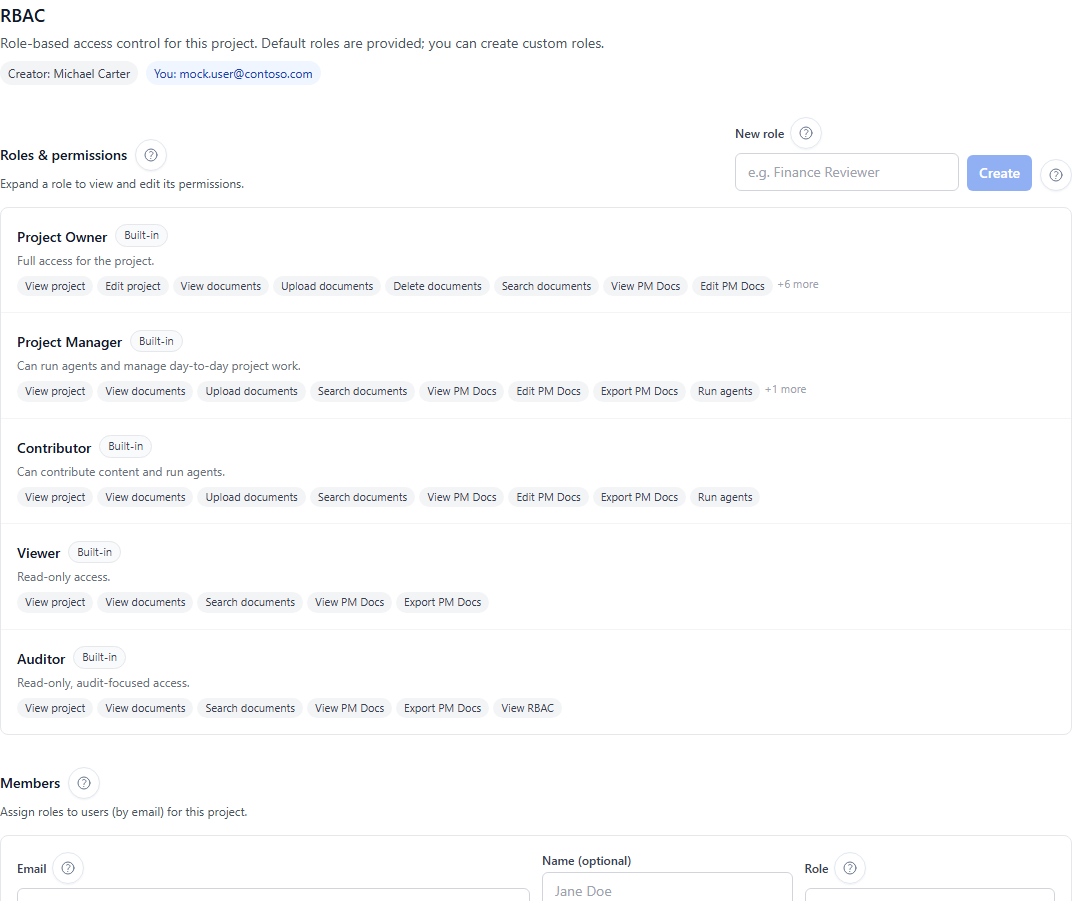
What you see on the page

The page is divided into two work areas:

  1. Roles and permissions
    • review of built‑in roles;
    • creation of custom roles;
    • inspection or modification of a custom role’s permissions;
  2. Members
    • add a member by email;
    • assign an integrated or custom role;
    • change a role;
    • delete a member when allowed.

The page may also display your current identity and, when exposed, the protected entry of the creator of the project.

Review roles before adding a member

  1. open Workspace;
  2. select the Access control tab;
  3. reread existing roles;
  4. check if a standard role suffices or if a custom role is needed.

Create a custom role

  1. open Roles and permissions;
  2. enter a name;
  3. optionally add a description;
  4. create the role;
  5. enable or disable the desired permissions;
  6. verify the badges or permissions displayed before real use.

Add or update a member

  1. open Members;
  2. enter the email;
  3. choose the desired role;
  4. save;
  5. verify that the member line reflects the expected role.

If the user belongs to another tenant, remember that an external / guest account must first be invited on the identity side before the project RBAC can assign a useful role.

Change a member’s role

  1. locate the member line in Members;
  2. use the role selector on that line;
  3. choose the new role;
  4. confirm that the line shows the updated role.

Remove a member

  1. locate the member to remove;
  2. use the delete action if available;
  3. confirm the member disappears from the list;
  4. if the action remains blocked, first check that it is not your own account or the protected creator entry.

Confirmed RBAC safeguards

The interface and platform services apply several important protections:

  • you cannot delete your own access from this screen;
  • you cannot modify your own role from this screen;
  • the creator entry remains protected;
  • a system role cannot be deleted;
  • a custom role still assigned cannot be deleted;
  • users without management rights see a viewable page with disabled controls.

Read‑only vs access denied

These two states do not mean the same thing:

  • read‑only: the page remains visible, but add, edit or delete controls are disabled;
  • access denied: the route or action is not available for your account.

In practice, this allows some profiles to review RBAC configuration without being able to modify it.

How to read a denial

What you observeMost likely readingRecommended reflex
a visible but greyed controlsurface exposed in read‑onlyfirst check if your role includes the expected permission
an action missing while it exists for otherspermission or role not grantedcompare your standard or custom role with the expected action
a visible action but impossible despite the UIserver‑side RBAC safeguard or protection constraintcheck if it is a system role, your own account or a protected entry

What the creator delegates in practice

NeedRole to assign firstWhy
administrative continuityProject Owneravoid a single account concentrating all administration
daily steeringProject Managermanage current work without opening full administration
content production and agent usageContributorrun agents and prepare deliverables
broad consultationReaderread‑only access without risk of modification
audit and traceabilityAuditorreview history and evidence without acting on the project

Common problems

Unable to delete a custom role

First check if this role is still assigned to a member. As long as it is used, deletion remains blocked.

Unable to modify my own role

This behavior is intentional to avoid accidental loss of access. Ask another project administrator to perform the change.

The tab is visible but everything is greyed

You are likely in read‑only on this surface. Verify if your role includes members:manage or roles:manage.

Tips

  • use Project Owner only for real project administrators;
  • keep custom roles targeted and limited to a specific need;
  • review permissions before delegating member management;
  • document custom roles in team practices to avoid duplicates.

Next