Getting Started

Home · Azure Marketplace Deployment · Interface and navigation

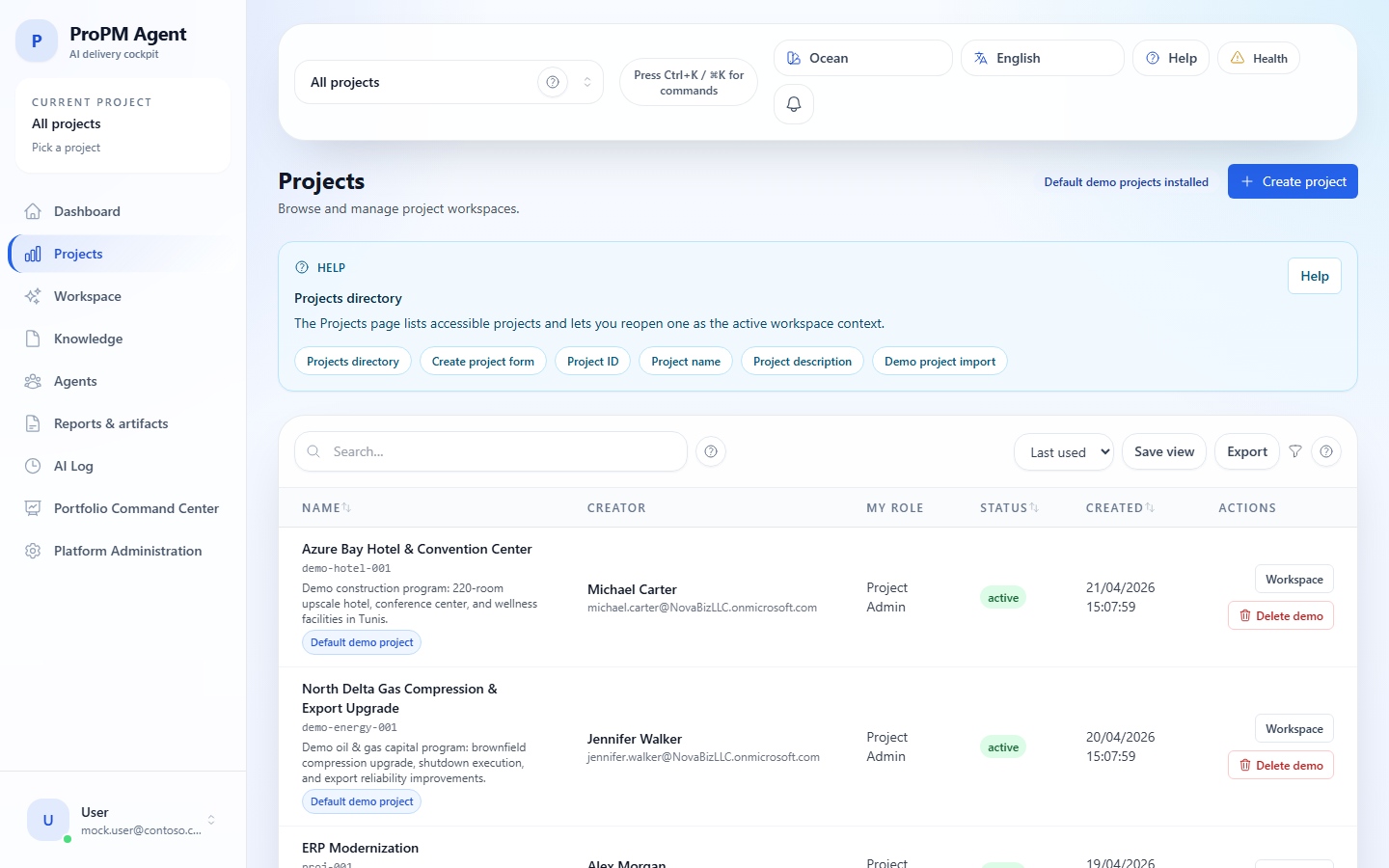
Projects directory

Goal

This page explains how to prepare access to ProPM Agent, successfully log in for the first time, choose the right project, and verify the essential technical points immediately after a deployment.

Who can use this page

  • Business user who receives a URL and must log in without heavy assistance;
  • Project owner who must create or select the first project context;
  • Technical administrator who must validate authentication, runtime and initial access.

If you do not yet have an application URL

If your instance is not yet deployed, start with Azure Marketplace Deployment. This step obtains the web URL, API and runtime parameters needed before any user login.

Before you start

User-side prerequisites

For normal use, you need:

  • the deployment URL for ProPM Agent;
  • a Microsoft Entra ID account authorized on the relevant tenant;
  • access to at least one project, or the right to create one;
  • a modern browser that supports recent web applications;
  • if you use voice, a browser compatible with voice recognition APIs.

Technical administrator prerequisites

The following items are explicitly expected by the observed configuration:

ElementRole
clientIdIdentifies the Entra application used on the web side
authoritySets the Microsoft Entra login authority
scopesDefines the permissions requested at authentication time
redirectUri and postLogoutRedirectUriControl returns after login and logout
allowedTenantIdRestricts, if configured, the authorized tenant
/runtime-config.jsonDynamic override of URLs and authentication parameters at runtime
API URLAllows the web interface to reach platform services
Subscription / seatsConditions access in deployments that require a per‑user license

First login flow

  1. open the published URL of your deployment;
  2. let the application redirect you to the Microsoft login page;
  3. sign in with the authorized account;
  4. return to the application, usually to the Dashboard;
  5. verify the interface language, current project and any visible messages in the top bar;
  6. open Projects to select or create your first project.

First login in 5 minutes

For a very simple first path, follow this order:

  1. sign in;
  2. confirm the active project in the top bar or open Projects;
  3. create or open a project;
  4. open Agents to ask a first simple question, for example a status or a priority risk;
  5. review the structured output;
  6. then open AI Log if you need to find the run trace, or Reports & artifacts if you want to turn the result into a governed document.

This path is enough to understand the core product logic without starting with every administration screen.

Access states to know

Two different states exist in the interface:

  • read‑only: you can view a surface but not modify its settings;
  • access denied: the route or action is not available for your account.

This distinction is important for administration areas: a technical page may be viewable without being able to save changes.

Expected result after the first login

If everything is correctly configured, you should be able to:

  • reach the Dashboard under good conditions;
  • open Projects;
  • select or create a project;
  • then access Workspace, Knowledge, Agents, Reports & artifacts and AI Log according to your rights.

Create your first project

The form observed in the application offers the following fields:

  • Project ID;
  • Name;
  • Description;
  • Default data language;
  • Additional data languages.

Project creation window

Important point

The project data language is not the same as the interface language.

The data language influences, in particular:

  • the default document categories offered;
  • certain agent system settings or prompts;
  • project‑specific initial values.

If no project appears

Several screens display an explicit empty state when no project is selected. That is normal. This is notably the case, in the observed state, for Workspace, Knowledge and AI Log.

In other words, a blank screen on these surfaces does not automatically mean a failure: it may simply indicate that no active project is currently defined.

To proceed:

  1. use the project selector in the top bar;
  2. open Projects to choose an accessible project;
  3. if you have creation rights, create a project;
  4. if the list remains empty, verify with your administrator that your account has been added to the correct project.

Locally remembered project context

The current project can be remembered in the browser to make it easier to resume work on the same device. This memory is a local convenience:

  • it depends on the browser and sometimes on the current session;
  • it is not a shared tenant-wide preference;
  • changing browser, profile or machine can make this remembered context disappear.

If doubt remains, always return to Projects or the top-bar project selector to confirm the context that is actually active.

Post‑deployment checklist for the technical administrator

After a new deployment, check at minimum:

  1. the published web URL;
  2. the availability of the /runtime-config.json file;
  3. consistency between the published URL and the redirect URIs configured in Entra;
  4. the presence of a valid client ID;
  5. the correct value of authority and, if used, allowedTenantId;
  6. the scopes expected by the frontend and API;
  7. the API URL;
  8. consumption or availability of seats if the plan requires it;
  9. a first test login with a standard user account and an administrator account.

Common checks during first login

Microsoft account authenticates, but access does not yet work as expected

Check in this order:

  1. the tenant used during login;
  2. that the account is authorized in that tenant;
  3. availability of a seat if the plan applies a per‑user license;
  4. existence of at least one accessible project for this account.

External / guest tenant or account case

If Microsoft indicates that your account does not exist in the target tenant, it usually means it must be invited as an external / guest user in the tenant hosting the application, then authorized on the enterprise app or via a group.

redirect URI mismatch

If the login returns a redirect error, compare the actually published URL with the Redirect URIs of the Entra app registration. Each published environment must be listed exactly, without typos.

unauthorized_client or client in the wrong tenant

This symptom usually indicates that the app registration is not in the correct tenant, or that the deployment uses an incompatible authority for a single‑tenant app.

Successful access, but admin screen in read‑only

This often means the account is authenticated but has not been resolved as a modifiable platform administrator. Check admin groups, the token tenant and the admin resolution method used by your environment.

Login OK, dashboard loaded, but additional verification is useful

This case often indicates that authentication succeeded but a further check of runtime or connectivity remains useful. Open the health indicator, note the API, auth, latency and current project states, then proceed to Interface and navigation to read the panel and to Maintenance, support and FAQ for verification pointers.

Quick references — access to confirm

Initial situationFirst checkThen
Microsoft returns an error before returning to the appauthority, tenant used, clientId, redirectUri, postLogoutRedirectUri, allowedTenantIdcompare runtime configuration and Entra registration, then retest with the correct account
Microsoft login succeeds but the app remains blockedavailability of a seat, health indicator, API URLthen check access to a project and the account’s actual rights
Login succeeds, dashboard loads, but an availability check is recommendedauth, API, latency and active project statesopen Interface and navigation, then Maintenance, support and FAQ to distinguish auth, runtime and project context
The app opens but no project appearsproject selector, Projects list, project membership, creation rightsask the Project Owner to add the account to the correct project if necessary
A page is visible but not editableproject role or admin role, read‑only vs access denied statethen check the admin group or relevant project permissions

Situation, items to note and next page

Observed situationItems to noteNext page to open
Microsoft error before returning to the appexact message, screenshot, account used, actually opened URLGetting Started, then Maintenance, support and FAQ if doubt persists
Dashboard loaded but availability check usefulAPI, realtime, auth, latency, test time, current projectInterface and navigation, then Maintenance, support and FAQ
No project visiblescreenshot of project selector, account email, expected projectProjects and workspace
Page visible but controls greyedpage name, expected role, screenshot of disabled buttonsAccess control and project roles or Portfolio and technical administration depending on surface
Login OK but runs do not startTrace ID if present, active project, health indicator, expected AI providerMaintenance, support and FAQ, then Reports, AI Log and traceability

For a situation that mixes authentication, runtime, project, seat or AI provider, use then Maintenance, support and FAQ as a cross‑checking page.

Best practices from the start

  • choose the right project before launching agents;
  • set the project data language correctly at creation;
  • verify your permission level before modifying governance or technical administration;
  • if your deployment uses a seat model, confirm that your access has been assigned;
  • keep the deployment URL and, if needed, the displayed Trace ID for support.

Next