Licenses, plans and updates
Home · Licenses, plans and updates
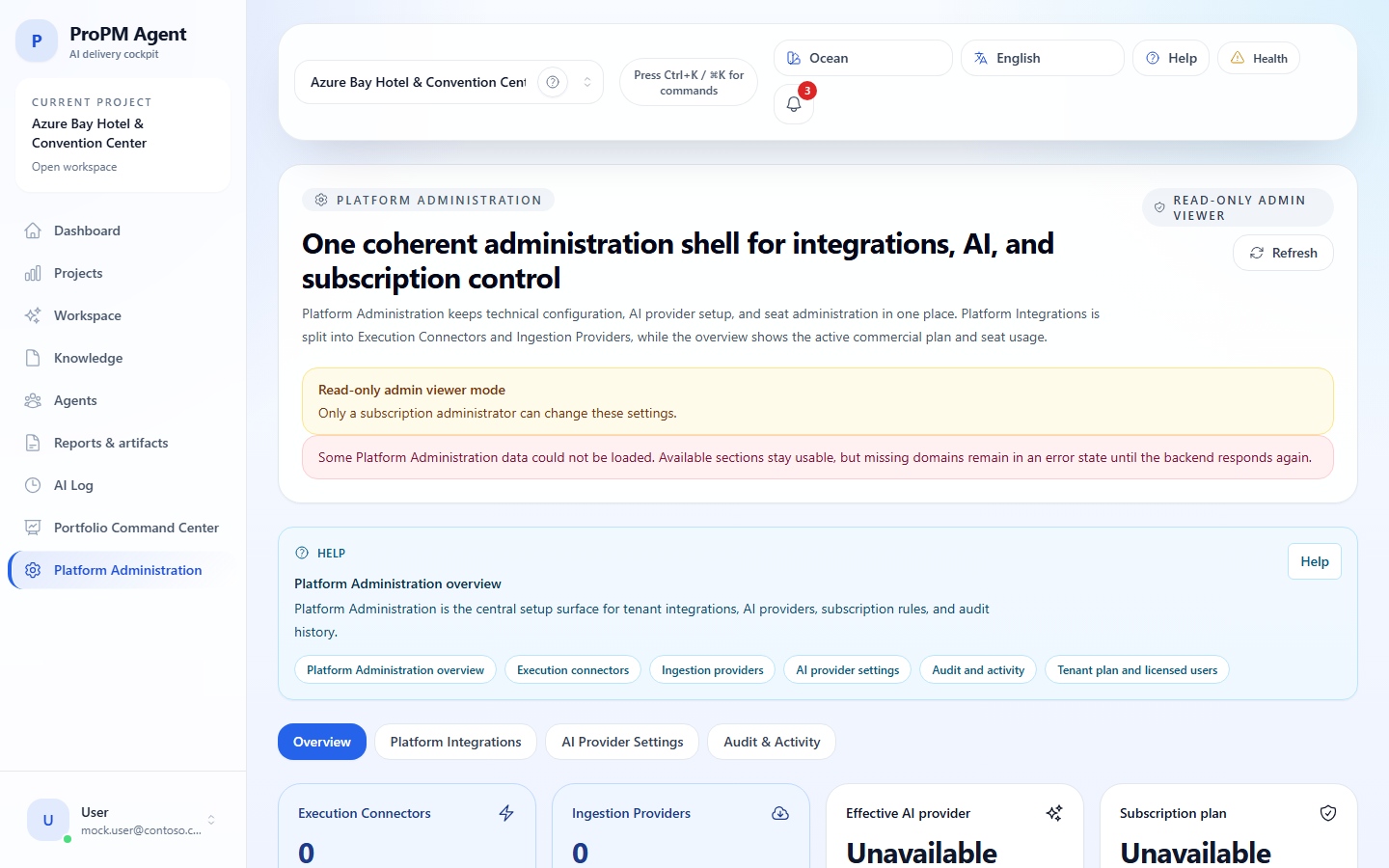
Goal
This page explains administrator operations for Marketplace plan, user licenses, plan changes, existing data attachment and application updates.
For a simple in-place application image update, use Deployment & Updates when available. For a plan change or major update that must keep existing data, create a new Azure Marketplace deployment and select Attach existing ProPM data resources.
Counters
| Counter | Meaning |
|---|---|
| Ordered seats | Marketplace ordered capacity |
| Included seats | Licenses included in the plan |
| Supplemental seats | Additional purchased licenses |
| Used seats | Users currently counted |
| Remaining seats | Licenses still available |
Manage licensed users
- Open Platform Administration.
- Stay in Overview.
- Open Tenant plan and licensed users.
- Review licensed or connected users.
- Identify a user to release if policy allows it.
- Use Release user only when the user no longer needs access.
- Verify remaining seats.
Refresh Marketplace plan
- Open Tenant plan and licensed users.
- Select Refresh Marketplace plan.
- Wait for synchronization.
- Verify counters.
Refresh Marketplace plan synchronizes known information. It does not buy seats, change plan or modify billing.
Change plan or major update with existing data
Use this flow when you need a new Marketplace deployment but must keep existing ProPM data, such as a commercial plan change or a major update that cannot be applied in place.
This is not a manual database migration. The new application tier connects to the data resources used by the previous ProPM deployment.
High-level flow
- Open Azure Marketplace.
- Select the target ProPM Agent plan.
- Create a new ProPM Agent deployment.
- In Application Settings, select Attach existing ProPM data resources.
- Enter the previous ProPM Managed Application resource ID.
- Leave optional override fields empty unless support or your architecture requires them.
- Configure cutover, administration, CORS, monitoring, password and VNet settings.
- Select Review + create.
- Validate the new instance before deleting or disabling the previous one.
Update screen 1 - Attach existing data
This part of Application Settings identifies the previous deployment and the existing data resources to reuse.
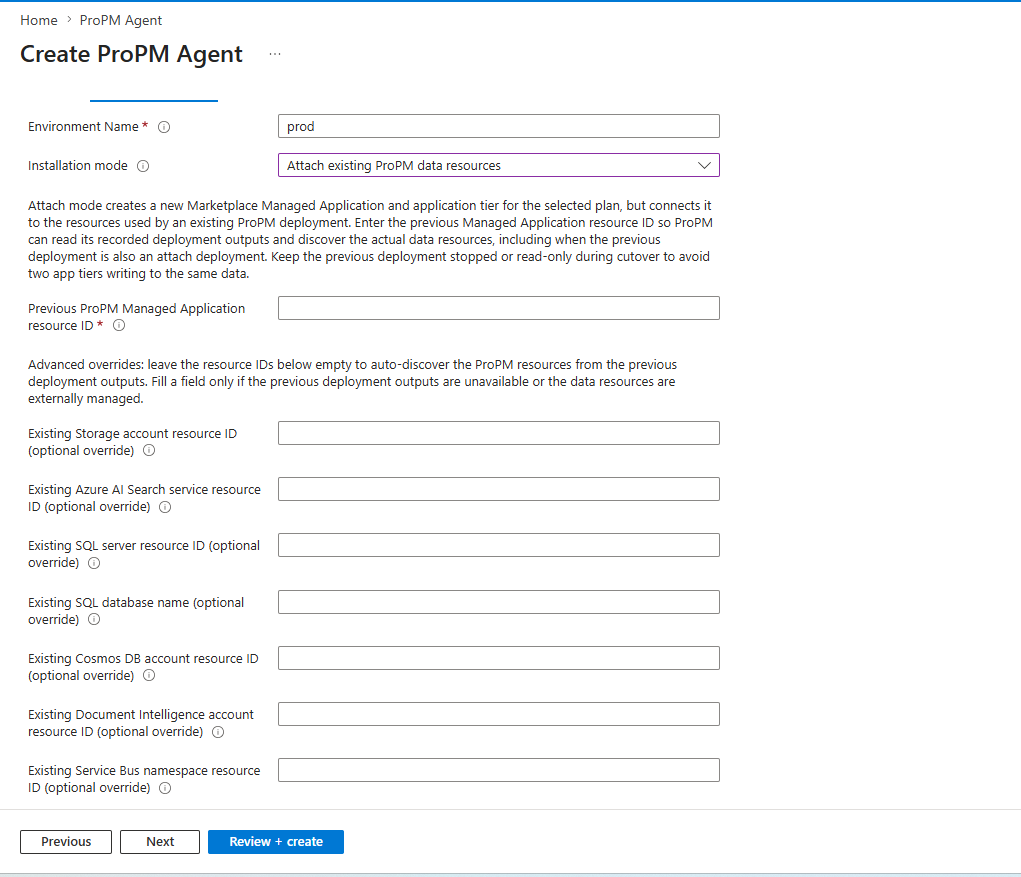
Attach existing data fields
| Field | Required | What to enter | Guidance |
|---|---|---|---|
| Environment Name | Yes | Short environment name, for example prod, uat or test. | Use a stable, non-secret value that identifies the new application tier. Keep it aligned with your naming convention. |
| Installation mode | Yes | Attach existing ProPM data resources. | This mode creates a new Marketplace Managed Application and application tier, then connects it to existing ProPM data resources. Use New installation only for a new empty environment. |
| Previous ProPM Managed Application resource ID | Yes | Full Azure resource ID of the previous ProPM Managed Application. | Copy the full Id from the previous Managed Application Properties page. Do not enter only the application name, resource group name or managed resource group name. |
| Existing Storage account resource ID (optional override) | No | Existing storage account resource ID, only when auto-discovery cannot be used. | Leave empty in the standard case. Fill only when previous deployment outputs are unavailable, resources are externally managed, or ProPM support asks for it. |
| Existing Azure AI Search service resource ID (optional override) | No | Existing Azure AI Search service resource ID. | Leave empty unless the standard discovery from the previous Managed Application cannot identify the search service. |
| Existing SQL server resource ID (optional override) | No | Existing SQL server resource ID. | Use only for known custom or externally managed SQL topology. This field identifies the SQL server, not the database name. |
| Existing SQL database name (optional override) | No | Existing SQL database name. | Use with care and only when the database name cannot be discovered from previous deployment outputs. |
| Existing Cosmos DB account resource ID (optional override) | No | Existing Cosmos DB account resource ID. | Leave empty unless you intentionally need to point the new app tier to a specific existing Cosmos DB account. |
| Existing Document Intelligence account resource ID (optional override) | No | Existing Document Intelligence account resource ID. | Use only if the previous deployment uses an externally managed or custom Document Intelligence resource. |
| Existing Service Bus namespace resource ID (optional override) | No | Existing Service Bus namespace resource ID. | Leave empty in the standard case so the deployment can reuse the discovered namespace. |
| Previous | No | Returns to the previous wizard step. | No deployment is started by this action. |
| Next | No | Moves to the next wizard step. | Use it after required fields are complete. |
| Review + create | No | Runs Azure validation before creation. | Use it only after the remaining settings below are complete. |
Update screen 2 - Cutover and platform settings
This part controls cutover safety, platform administration, AI provider reuse, CORS, monitoring, SQL password confirmation and network range.
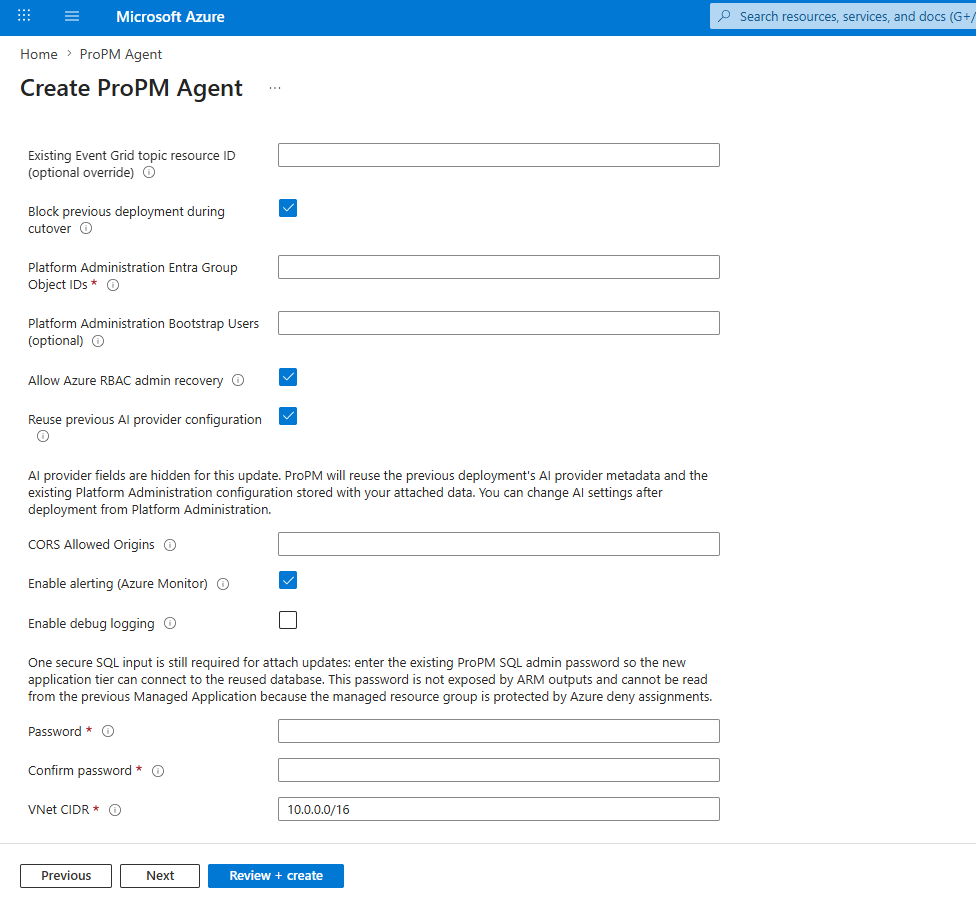
Cutover and platform fields
| Field | Required | What to enter | Guidance |
|---|---|---|---|
| Existing Event Grid topic resource ID (optional override) | No | Existing Event Grid topic resource ID. | Leave empty unless auto-discovery cannot find the topic or support instructs you to provide it. |
| Block previous deployment during cutover | No, recommended for cutover | Check the box when you want to prevent changes in the previous deployment during validation. | This helps avoid two application tiers writing to the same data. If you do not use this checkbox, keep the previous deployment stopped or read-only by another controlled method. |
| Platform Administration Entra Group Object IDs | Yes | Object IDs of Entra groups that can administer the new platform instance. | Enter group Object IDs, not display names. Confirm the groups are the intended administrators before deployment. |
| Platform Administration Bootstrap Users (optional) | No | Bootstrap or recovery users, if your access procedure requires them. | Keep this list minimal. Use it only for first access or controlled recovery. |
| Allow Azure RBAC admin recovery | No | Checkbox allowing administrator recovery through Azure RBAC. | Keep enabled if your operating model allows authorized Azure administrators to recover access. Disable only if governance requires strict separation. |
| Reuse previous AI provider configuration | Recommended | Check the box when the new deployment should reuse the previous AI provider metadata and platform administration configuration. | When enabled, AI provider fields are hidden for this update. You can change AI settings later from Platform Administration. |
| CORS Allowed Origins | Scenario-dependent | Additional allowed web origins, for example https://portal.contoso.com. | Leave empty if no additional origin is required. Avoid broad wildcards. |
| Enable alerting (Azure Monitor) | No | Enable or disable Azure Monitor alerting. | Recommended for production. Verify recipients and action rules after deployment. |
| Enable debug logging | No | Enable more detailed logs. | Keep disabled except during controlled diagnosis because it can increase log volume and expose more technical detail to administrators. |
| Password | Yes | Existing ProPM SQL admin password. | Attach updates still require this secure SQL input so the new application tier can connect to the reused database. Store and enter it through approved secret-handling procedures. |
| Confirm password | Yes | Same value as Password. | Azure validates that both values match. Re-enter both fields from the secure source if validation fails. |
| VNet CIDR | Yes | Private network range for the new deployment, for example 10.0.0.0/16. | Validate with the network team. Avoid overlap with existing networks, peerings, VPNs or planned ranges. |
Before Review + create
| Check | Expected result |
|---|---|
| Previous Managed Application ID | Full Azure resource ID from the previous ProPM Managed Application |
| Override fields | Empty unless discovery is impossible or support requested overrides |
| Previous deployment | Blocked, stopped or read-only during cutover |
| Admin groups | Correct Entra Group Object IDs for the new instance |
| AI provider reuse | Enabled when previous configuration should be carried forward |
| SQL password | Existing ProPM SQL admin password entered through secure handling |
| VNet CIDR | Validated and non-overlapping |
| Review + create | Azure validation passes before creation starts |
After the new deployment
- Wait for Azure provisioning to finish.
- Open the new ProPM Agent URL.
- Verify administrator sign-in.
- Verify users, projects, documents, knowledge, reports, agents and integrations.
- Verify AI provider configuration and run a test if needed.
- Verify Marketplace plan and license counters.
- Move users to the new deployment only after validation.
- Keep the previous deployment temporarily if your cutover plan requires it.
- Do not delete reused data resources while the new deployment depends on them.
Application updates
Use Deployment & Updates to check and apply in-place application image updates when the surface is available. Run updates during a controlled window and keep support information if rollback is needed.
Do not use Deployment & Updates for commercial plan changes, new Marketplace purchases, major updates requiring a new Managed Application, or cutovers to existing data resources.